
LogoLogo (dark)
  • Free Coaching Certification
  • Free Masterclass
  • University
  • The Book
  • Governance
  • Contact
Loading...

About Us

Products

Free Resources

Other

  • Governance
  • Press & Features
  • What Is Life Coaching
  • Giving Back
  • Reviews
  • ICF Coaching Accreditation
  • ABNLP NLP Accreditation
  • Business Mastery
  • University
  • Coaching Certification
  • Coaching Masterclass
  • Strategy Session
  • App For Coaches
  • Contact Us or Support
  • Cafe Coach
  • Merchandise
  • Podcast
  • FAQs
Get CoachApp on the Apple App StoreGet CoachApp on the Google Play Store
The Coaching Masters Logo

© 2026 The Coaching Masters

TermsPrivacy
LogoLogo (dark)
  • Free Coaching Certification
  • Free Masterclass
  • University
  • The Book
  • Governance
  • Contact
Loading...

About Us

Products

Free Resources

Other

  • Governance
  • Press & Features
  • What Is Life Coaching
  • Giving Back
  • Reviews
  • ICF Coaching Accreditation
  • ABNLP NLP Accreditation
  • Business Mastery
  • University
  • Coaching Certification
  • Coaching Masterclass
  • Strategy Session
  • App For Coaches
  • Contact Us or Support
  • Cafe Coach
  • Merchandise
  • Podcast
  • FAQs
Get CoachApp on the Apple App StoreGet CoachApp on the Google Play Store
The Coaching Masters Logo

© 2026 The Coaching Masters

TermsPrivacy

Categories

UniversityAccount Management & BillingAffiliate Program & ReferralsGeneral QuestionsCoachApp Membership​Merchandise Store
University

For my assessment, how do I share my Zoom recording link publicly?


For your assessment to be reviewed, it is ESSENTIAL your recording is open for us to view
To share your zoom recording publicly, you can follow the steps below.
  1. Go to https://zoom.us/signin and log in with your Zoom ID and password.
  2. Once logged in, navigate to your previous recordings by clicking the Recordings tab on the left side of the screen. Find the recording that you want to disable the password for and select Share.

file

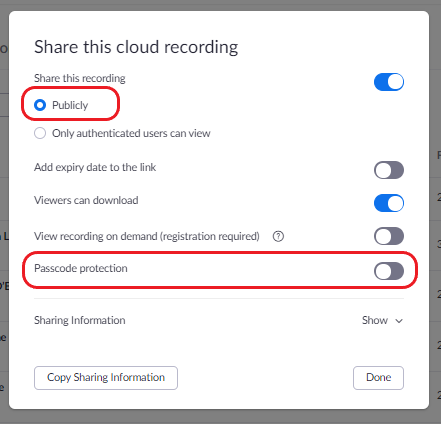
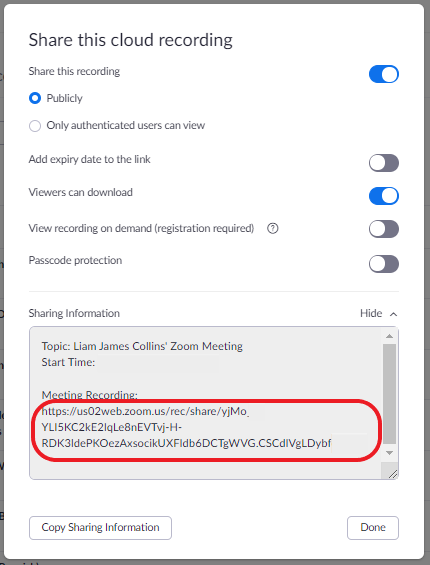
3. Within the window that pops up, toggle the slider next to Password Protect to disable the password for this meeting. Click show to see the recording link.
file RpGdce8M4z

4. Copy and paste the recording link to the Coaching observation assessment submission form.
file OQmgf77bsb

Categories

UniversityAccount Management & BillingAffiliate Program & ReferralsGeneral QuestionsCoachApp Membership​Merchandise Store
University

For my assessment, how do I share my Zoom recording link publicly?


For your assessment to be reviewed, it is ESSENTIAL your recording is open for us to view
To share your zoom recording publicly, you can follow the steps below.
  1. Go to https://zoom.us/signin and log in with your Zoom ID and password.
  2. Once logged in, navigate to your previous recordings by clicking the Recordings tab on the left side of the screen. Find the recording that you want to disable the password for and select Share.

file

3. Within the window that pops up, toggle the slider next to Password Protect to disable the password for this meeting. Click show to see the recording link.

file RpGdce8M4z

4. Copy and paste the recording link to the Coaching observation assessment submission form.

file OQmgf77bsb